
Guide
How to monitor competitor prices without coding
Updated: September 17, 2026
Why checking prices by hand doesn't scale
If you sell online, what your competitors charge sets your margin. Checking five stores once a week by hand is fine; checking a hundred products every day is not. Dedicated price monitoring tools usually charge per tracked product, with plans well above what a small seller wants to pay.
The cheap alternative is a scraper that reads each competitor's listing page and drops the prices into a spreadsheet on the schedule you choose.
1. Build the scraper on the listing page
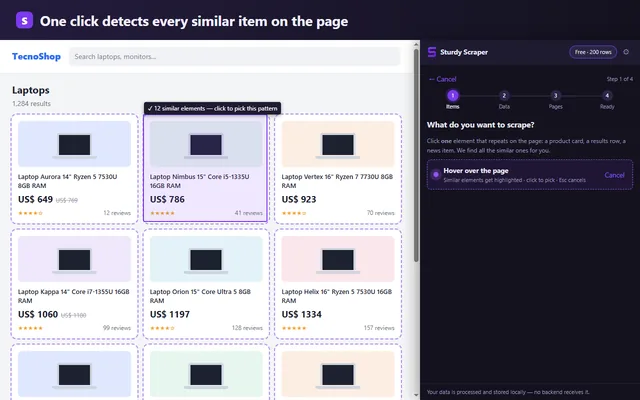
Open the store page that lists the products you care about (a category or a search) and in Sturdy Scraper click New scraper → Select container. Click one product card: the extension highlights every similar one and tells you how many it found.
2. Pick the columns to keep
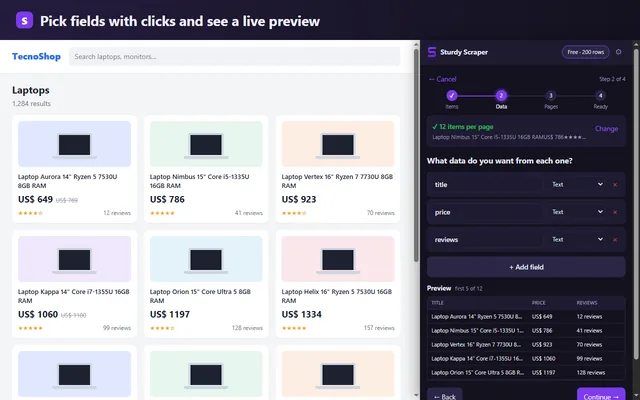
With Add field, click a product's name, price and link. The link matters: it lets you match runs from different days even if the store reorders the list. If results span several pages, the next step lets you choose how to move forward (“Next” link, “Load more” button or scroll) and a page limit.
3. Schedule the check
In your scraper list, click Schedule and choose how often it runs: from every 15 minutes to once a day. For prices, once or twice a day is usually enough.
Each run opens the store in a background tab, saves the data and closes the tab, so you can keep browsing. When a run goes fine, it doesn't bother you with notifications. The one requirement is that Chrome is open: the extension doesn't run on servers, everything happens on your computer.
4. Export and compare in your spreadsheet
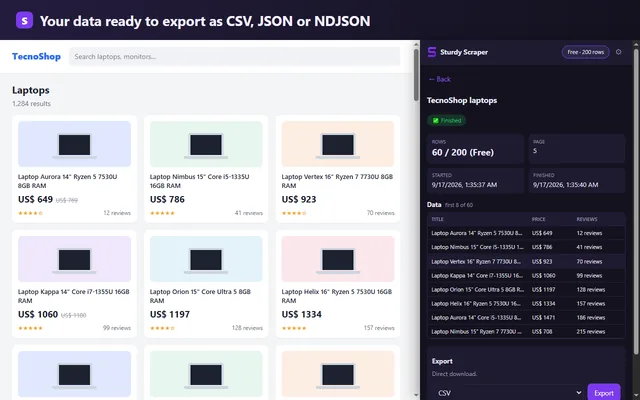
Every run is saved with its date (the last 30 per scraper). Export it to CSV and open it in Excel or Google Sheets; with the product link as the key, a VLOOKUP or XLOOKUP shows what changed from one day to the next.
When the store changes its page
This is what breaks any homemade monitoring: the store redesigns its listing and your sheet silently fills with empty cells. Sturdy Scraper compares every run with the first one:
- If it can't find any products, it pauses the schedule and sends you a notification instead of saving an empty run.
- If it finds the products but a column came back empty (say, the price moved), the run is saved and it tells you which column to check.
Limits and good practice
The Free plan lets you try all of this with up to 200 rows per run; Pro removes the limit. Stick to public prices, don't schedule checks more often than you need, and respect each site's terms. Your data stays in your browser and never goes through a server of ours.
FAQ
Does my computer need to stay on?
Yes, with Chrome open. Scheduled checks run in your browser, not in the cloud.
How many products can I track?
On Free, up to 200 rows per run and as many scrapers as you want. Pro has no row limit.
What if the store shows a different page?
If it can't find the products, it pauses the schedule and notifies you. No empty run is saved.
Keep reading
Guide: website data to Excel · Web Scraper alternative · Changelog